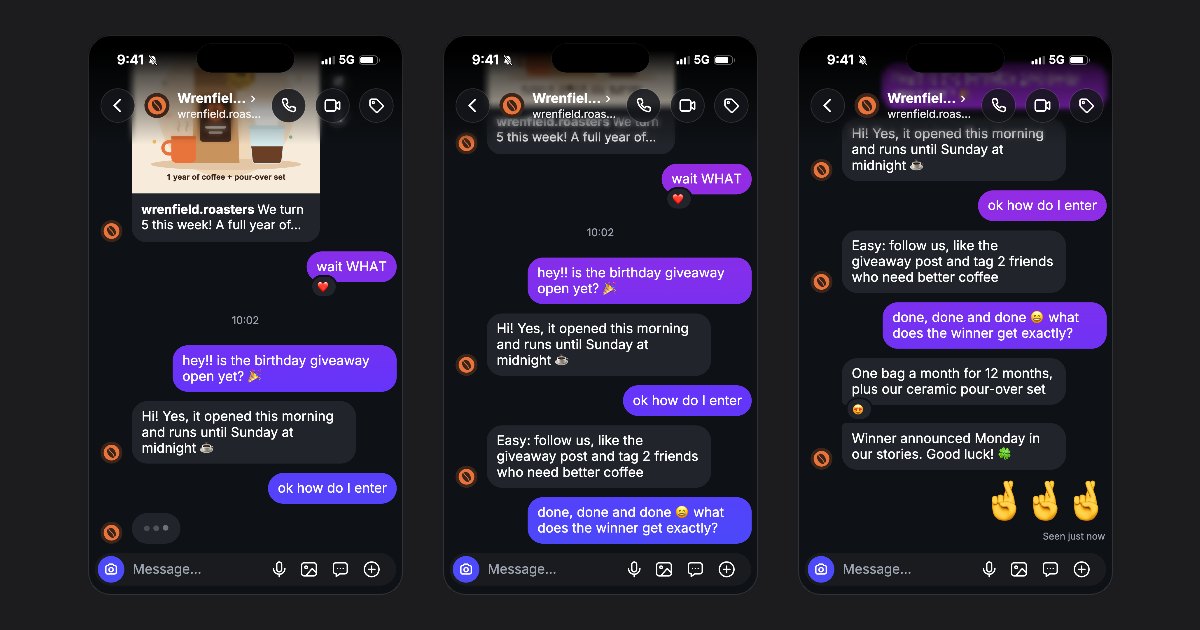
A DM video shows a conversation the way it looks on a phone screen: the messages arrive one by one, with typing dots, sounds and the status bar at the top. This guide follows fakedm.app from the first message to the finished MP4, with the names of the buttons as you will see them in the editor.
What a fake DM video is used for
The format works because everyone reads it at a glance. Creators, brands and agencies use it for:
- Skits and stories: a funny exchange, a plot twist, a story told entirely in messages.
- Ads: a customer asks a question and the brand answers with its offer.
- Brand announcements: a giveaway, a launch date or a new product, revealed in a chat.
- Mockups: a pitch, a storyboard or a design review that needs a believable conversation.
Whatever the use, what you make is a mockup, not a real message. There is a short note on what that means at the end of this guide.
Step 1: choose a template or a blank chat
Open the fake Instagram DM generator or the templates. Each template card plays its own chat; tap Use this template to open it in the editor. The Giveaway announcement template used in this guide starts with the brand's giveaway post already in the chat, then a follower asks how to enter.
To write your own conversation from the very first line, choose Start blank instead: you get an empty chat with a neutral profile, ready to fill.
Step 2: edit the profile, the name and the photo
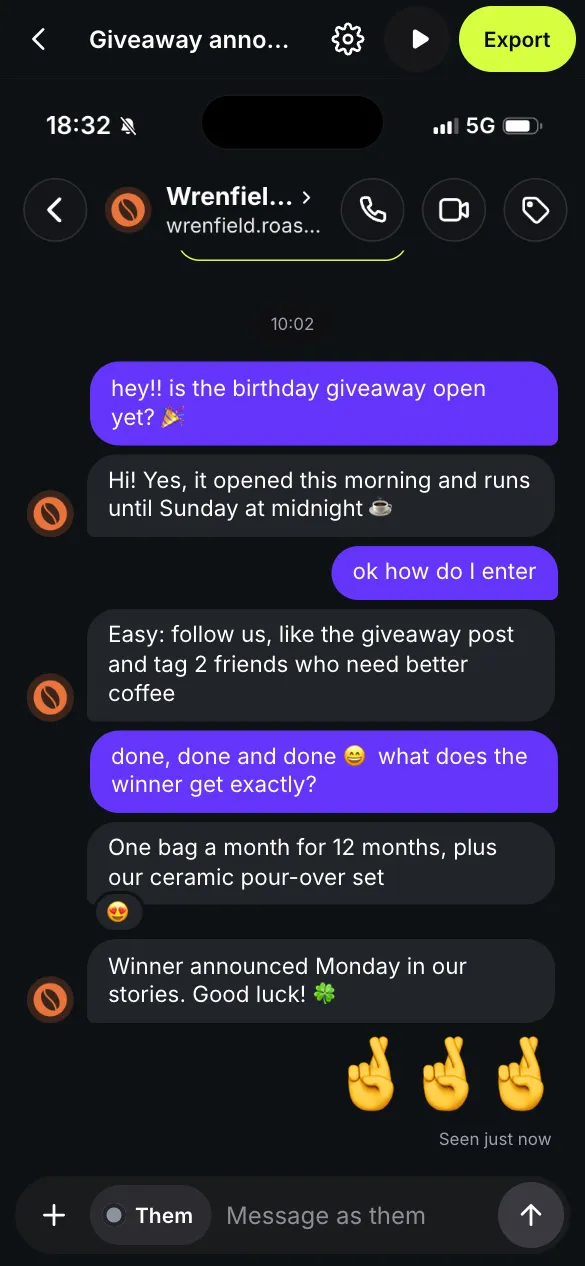
Tap the top bar of the chat to open Profile (on a computer, the profile sits in the side panel). Fill in the Username and the Name shown at the top of the chat, then tap the photo to choose a picture. Followers and Posts are the counts shown on the profile card at the top of a new chat.
Use a name and a photo you have the right to use: your brand, your character or a person you made up.
Step 3: write the messages and switch sides
Type in the field at the bottom and send, just like a text. The chip next to the field says who is talking: tap Me or Them to switch sides. You can also swipe a bubble sideways to move it to the other side, or tap it to edit it.
The + button adds the other kinds of messages:
- Photo, for a picture in the chat.
- Voice message, with its length in seconds.
- Shared post or Shared reel, with its author and its picture.
- Time separator, such as "Fri 21:14", and Pause, a silent wait in the video.
Tap a bubble to go further: React puts an emoji reaction under it, and Reply to a story turns it into a story reply.
Step 4: adjust the timing, the status bar, the theme and the language
Open Settings, the gear icon. Under Timing, Typing speed sets how fast the messages are typed, and Gap between messages sets the wait between one message and the next. Tap a single bubble to change the delay before it or its typing time.
Under Advanced, set the Status bar time (9:41 is the classic), the Battery level and its percentage, the Network and the Signal bars. A nearly empty battery or a 5G label is enough to make a scene feel lived in.
Pick the Chat theme, Dark or Light, just like in the app. Chat language changes the words around your messages, such as Seen or View profile; your messages stay exactly as you typed them.
Step 5: preview it with Play
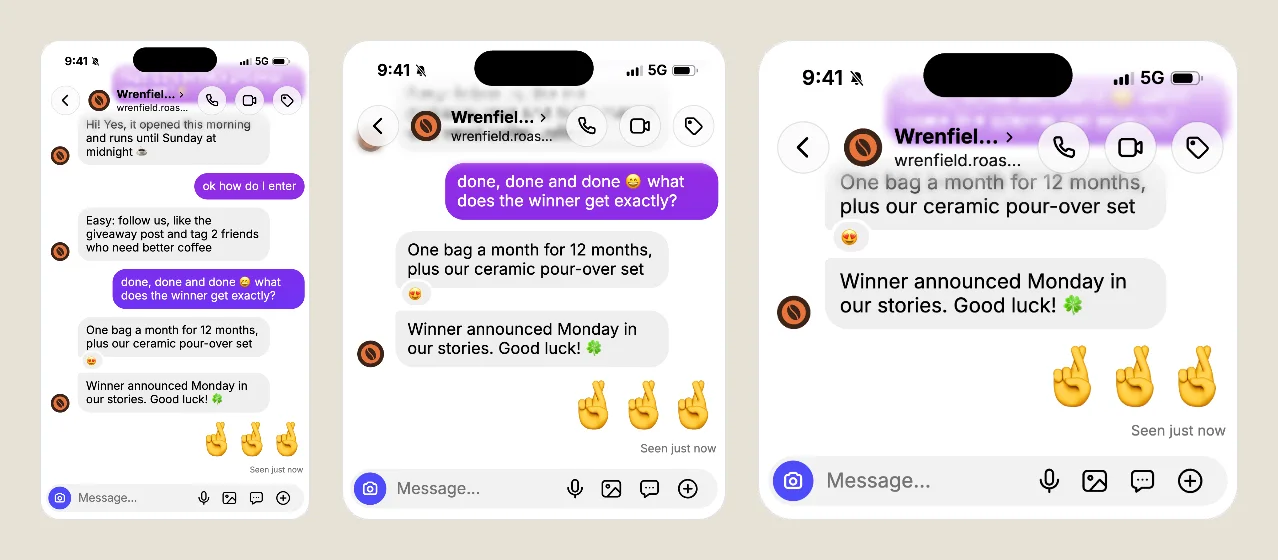
Tap Play preview, the play icon, to watch the chat exactly as the video will show it, with the typing dots, the timing and the reactions. Watch it once as your audience would: if you have to read a line twice, give it more time or split it in two.
Step 6: export the screenshot or the video
Tap Export and pick a Format: Story 9:16 for stories and reels, Feed 4:5 or Square 1:1 for posts, all 1080 pixels wide. Then choose what to download:
- Image (PNG) saves a screenshot, free and without watermark. A chat longer than one screen is saved as a series of screenshots, from the top of the chat to the bottom.
- Video (MP4) saves the animated chat with sound (WebM on some browsers). Free videos carry a small watermark and end with a short card; a 3-video pack or Unlimited removes both. The details are on the pricing page.
Tips for a chat that feels real
- Count about one second per line. That is how long a viewer needs to read a short message; give long messages more time with the gap between messages.
- Make the first message clear. It decides whether people keep watching: a question, a surprise or a name they know.
- Keep it short for Reels and TikTok. Six to ten messages are often enough. Cut anything that does not move the story forward.
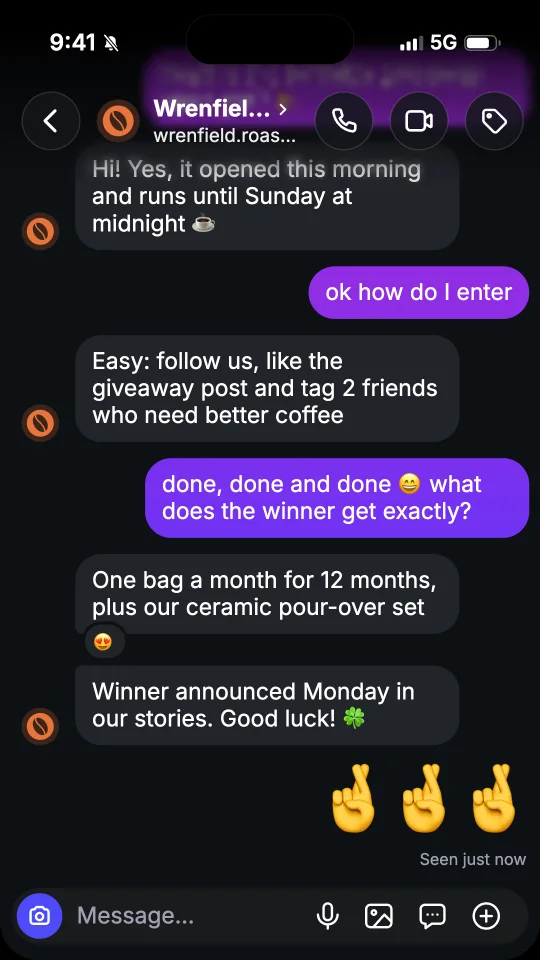
- Let the details do the work. A plausible time, a real profile photo and one well placed reaction do more than a long chat.
Use it responsibly
fakedm.app makes mockups for fiction, ads, skits and presentations. Do not impersonate real people, do not present a chat as written by someone who did not write it, and do not use it to deceive anyone. The rules are in the terms.
Ready to try? Open the template below and make it yours.